
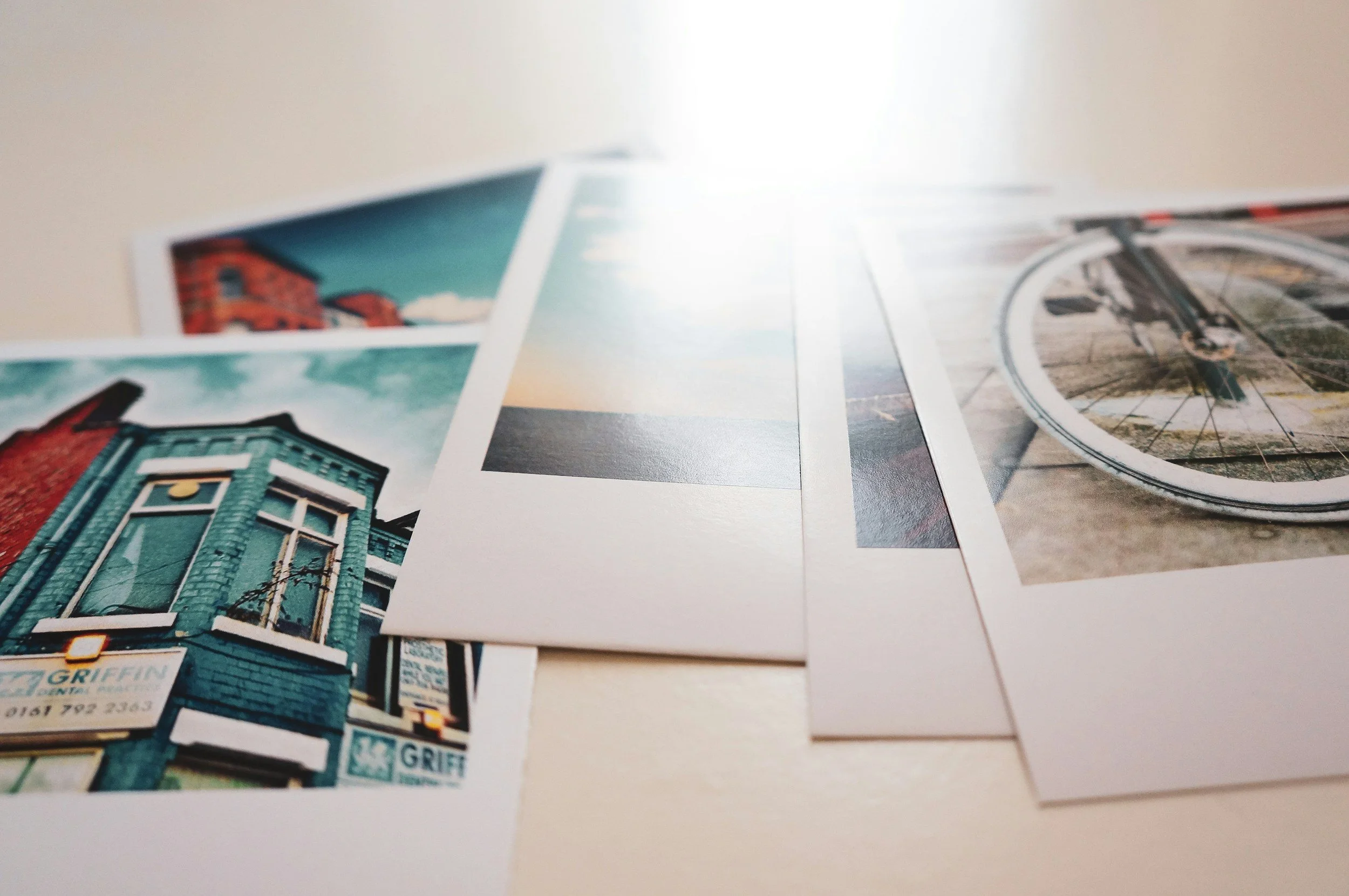
Organizing years of digital photos can feel risky. There may be thousands of screenshots, duplicates, blurry images, and downloads mixed with family photographs that cannot be replaced.
The safest approach is to back up the collection before deleting or reorganizing anything. After that, work in small batches and use a simple system that can be maintained without turning photo organization into a permanent project.
Back Up the Collection Before You Start
Do not begin by deleting duplicates or moving large folders. First, create at least one separate copy of the original collection.
A practical backup may include:
The main photo library on a phone or computer
A second copy on an external drive
Another copy in a reputable cloud service or different physical location
The Cybersecurity and Infrastructure Security Agency recommends the 3-2-1 approach for important files: keep three copies, use two types of storage, and store one copy off-site.
A synchronized photo library is helpful, but syncing is not the same as an independent backup. If a photo is deleted from a synced library, that deletion may appear on every connected device.
Confirm That Cloud Backup Is Complete
Do not assume that every phone photo has uploaded. A full account, paused backup, poor connection, or excluded folder may leave files only on the device.
Check the backup status inside the photo service. Then sign in from a computer or another device and confirm that you can open:
The most recent photos
Older photos
Videos
Screenshots
Images from messaging apps
Photos in special or private folders
Google Photos displays whether an individual item is backed up. Apple users who optimize device storage should remember that the full-resolution originals may be stored in iCloud rather than locally.
Gather Photos From Every Location
Make a list of places that may contain photographs:
Current and previous phones
Computers
Tablets
Cameras and memory cards
External drives
Cloud accounts
Messaging apps
Email attachments
Social media downloads
Shared family folders
Scanned prints
Copy these files into one working library or a clearly labeled collection of import folders. Do not erase the original device or drive immediately after copying.
Keep each imported group labeled by source until you have confirmed that the transfer worked. Names such as Old iPhone Import or Camera Card 2024 are more useful than several folders called Photos.
Choose One Main Photo Library
Select one service or application as the main place for browsing and organizing photos. This could be Apple Photos, Google Photos, a computer-based photo manager, or a carefully structured folder system.
Using several active libraries can create confusion about which version is complete. Decide:
Where new phone photos will upload
Where albums will be created
Where full-resolution originals will be stored
Which location is the backup rather than the working library
The goal is not to use only one copy. It is to have one clearly identified master library supported by separate backups.
Organize by Date Before Creating Many Folders
Most phones and cameras store the date and time in the photo’s metadata. Photo applications use that information to place images in chronological order.
Begin by reviewing the collection by year and month. Correct obviously wrong dates before building detailed albums. A scanned photograph from 1985 may appear under the scan date unless its information is updated.
A simple folder system for files stored outside a photo app might look like:
2024
2025
2026
Inside each year, use event folders only when they add value:
2026-03 Family Reunion
2026-06 Beach Trip
2026-12 Holidays
Starting folder names with the year, month, and event keeps them in chronological order.
Use Albums Without Duplicating Files
Albums are useful for trips, people, projects, holidays, and important milestones. In most photo applications, adding a picture to an album does not create a second copy of the image.
One photograph can appear in several albums while remaining a single item in the library. For example, a graduation photo could be included in albums for the year, the person, and the event.
Avoid creating an album for every small occasion. Too many albums can become another form of clutter.
Useful album categories might include:
Family
Friends
Travel
Celebrations
Pets
Home projects
Important documents
Favorites
Photos to print
Remove Easy Clutter First
Begin with items that require little emotional judgment:
Accidental screenshots
Pocket photos
Photos of the floor
Failed downloads
Unneeded receipts
Out-of-focus images with no value
Repeated memes
Temporary parking or shopping photos
Long bursts where every frame is nearly identical
Do not start with emotionally important events. Quick, low-risk deletions create visible progress and make the meaningful photographs easier to find.
If uncertain, move an item into a “Review Later” album instead of deleting it.
Handle Duplicates Carefully
Automatic duplicate tools can save time, but review their suggestions before approving a large cleanup.
Files that look identical may differ in:
Resolution
File format
Editing
Cropping
Live-photo or motion data
Creation date
Location data
Captions
Album membership
Keep the highest-quality original unless there is a reason to preserve an edited version too.
Apple Photos can identify duplicate photos and videos and merge selected items. Apple notes that removed duplicates remain in Recently Deleted for a limited period, giving users time to recover them.
Do not permanently clear the deleted folder until the main library and backup have been checked.
Keep the Best Version of Repeated Shots
Several similar photographs are not always true duplicates. Burst photos may capture different expressions, movements, or details.
Choose the strongest image by checking:
Focus
Facial expressions
Lighting
Composition
Whether anyone is blinking
Whether the full-resolution file is available
Whether another image shows an important moment
Keep more than one when each image tells a different part of the story. The purpose is to reduce meaningless repetition, not remove every variation.
Add Context to Important Photos
A photo becomes more valuable when future viewers know who, where, and what it shows.
For important images, add:
Names
Location
Event
Approximate date
Short caption
Relevant family relationship
Use the caption, description, title, keyword, or information field inside the photo application. Avoid putting the only copy of this information in a separate note that may become disconnected from the image.
For scanned family photographs, ask relatives to help identify people while they still can.
Mark Favorites Before Doing a Large Cleanup
Create a Favorites or Keep Forever collection for photographs you would be especially upset to lose.
Include:
Major family events
Childhood photographs
Images of relatives who have died
Important documents
Meaningful everyday moments
Best-quality portraits
Photos intended for printing
Export a separate copy of this smaller collection to another storage location. A carefully selected archive is easier to verify than an entire library containing tens of thousands of files.
Preserve Original Files When Exporting
When moving photographs between services, determine whether the export includes:
Full-resolution originals
Edited versions
Videos
Motion or Live Photo components
Dates and location metadata
Captions
Album information
Apple provides options to export photos and unmodified originals. Google allows users to create a photo archive through Google Takeout.
An export may store extra information, such as comments or album details, in separate metadata files. Keep those files with the archive even if they do not look like photographs.
After exporting, open a selection of files before treating the copy as a successful backup.
Be Careful When Changing Services
Copying photos to a new cloud provider does not necessarily preserve every album, edit, caption, or sharing permission exactly as it appeared before.
Before closing the old account:
Complete the transfer.
Compare the number of photos and videos.
Open files from different years.
Check important albums.
Confirm that videos play.
Look for unsupported file types.
Keep the old account active until the new library is verified.
Save an independent local backup.
Google notes that transferring a library may create duplicates if the same transfer is performed more than once.
Protect Private Photos
Photo libraries can contain identity documents, medical information, children’s locations, home addresses, and other sensitive details.
Use:
A strong, unique account password
Multifactor authentication
Device screen locks
Encrypted storage
Carefully reviewed sharing permissions
Check old shared albums and links. Remove access that is no longer needed, especially when an album contains family or location information.
A hidden album improves ordinary privacy but may not provide the same protection as encrypted storage.
Create a Small Maintenance Routine
Once the library is under control, spend a few minutes each month on maintenance:
Confirm backup status.
Delete obvious clutter.
Review screenshots.
Name important albums.
Add captions to meaningful photos.
Export new favorites.
Check storage space.
Test the external backup occasionally.
A yearly review can focus on selecting photographs for printing, creating a family album, and confirming that older storage devices still work.
The best photo system is not the most detailed one. It is the one that keeps important files backed up, searchable, and understandable without requiring constant work.
